What happened
In many CCTV systems, device status is reduced to two states: online or offline. A green indicator means that everything is fine, while a red one means that something has failed....
AI BriefWire / Briefing
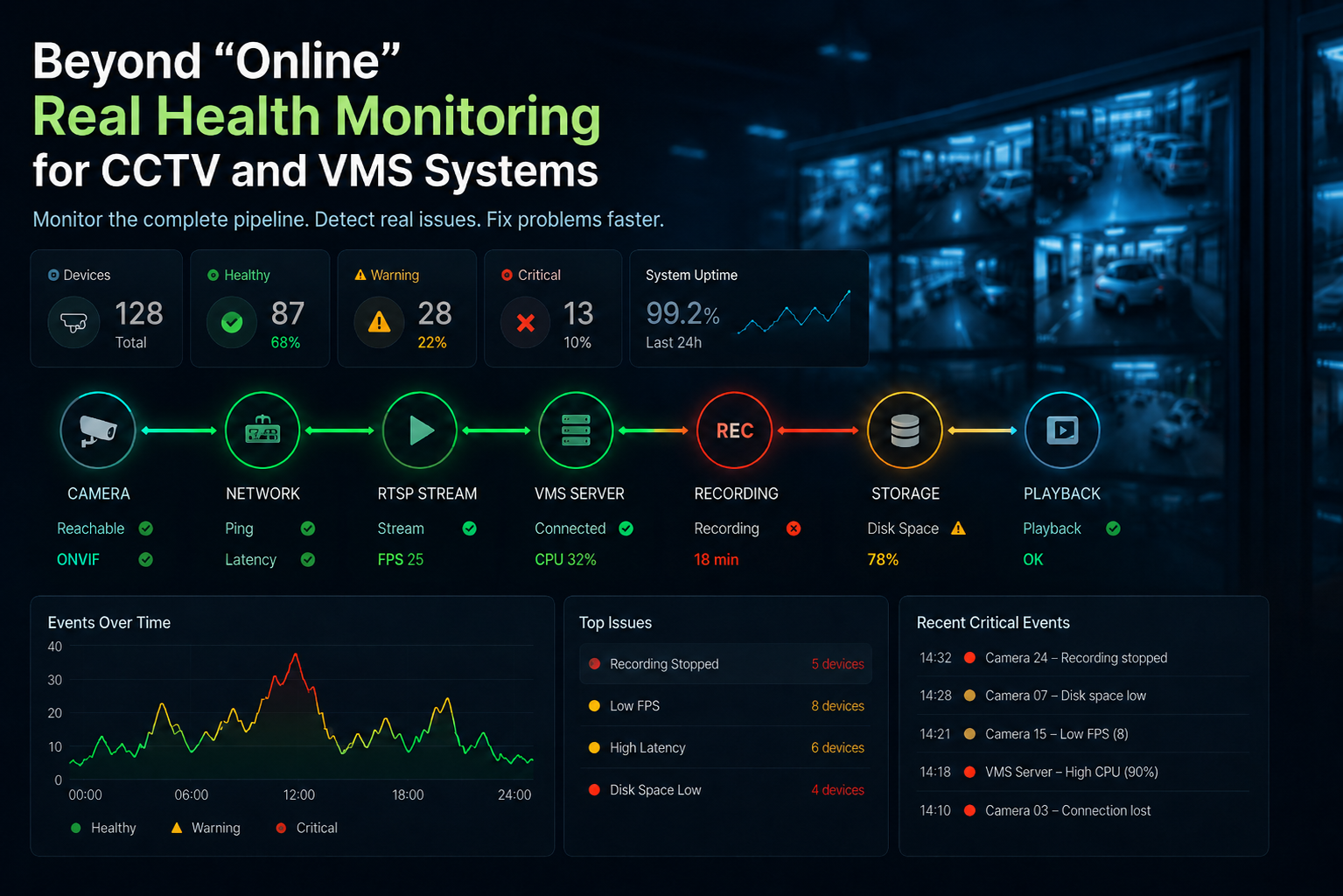
In many CCTV systems, device status is reduced to two states: online or offline. A green indicator means that everything is fine, while a red one means that something has failed. In practice, it is rarely that simple. A camera can respond to a network request but fail to provide video. The live stream may work while recording has stopped. The VMS may show the camera as connected even though the archive cannot be written because the storage is full. This is why, when I build a monitoring dashboard, I try to look at the complete video pipeline rather than a single connection status.
A structured operator read: what happened, why it matters, who is affected, and what to watch next.
In many CCTV systems, device status is reduced to two states: online or offline. A green indicator means that everything is fine, while a red one means that something has failed....
Accurate health monitoring of CCTV and VMS systems is critical because simple online/offline status often misses underlying failures that impact security and operations.
Implementing layered monitoring improves troubleshooting speed, reduces downtime, and ensures reliable video recording and playback, directly enhancing security service quality and...
Teams tracking Core AI, AI Development, product strategy, operations, and market positioning.
Founders and product leaders should prioritize developing or adopting monitoring dashboards that provide detailed, multi-layered status insights and historical data to enable proactive...
Founders and product leaders should prioritize developing or adopting monitoring dashboards that provide detailed, multi-layered status insights and historical data to enable proactive...
Full text of the AI BriefWire opinion piece.
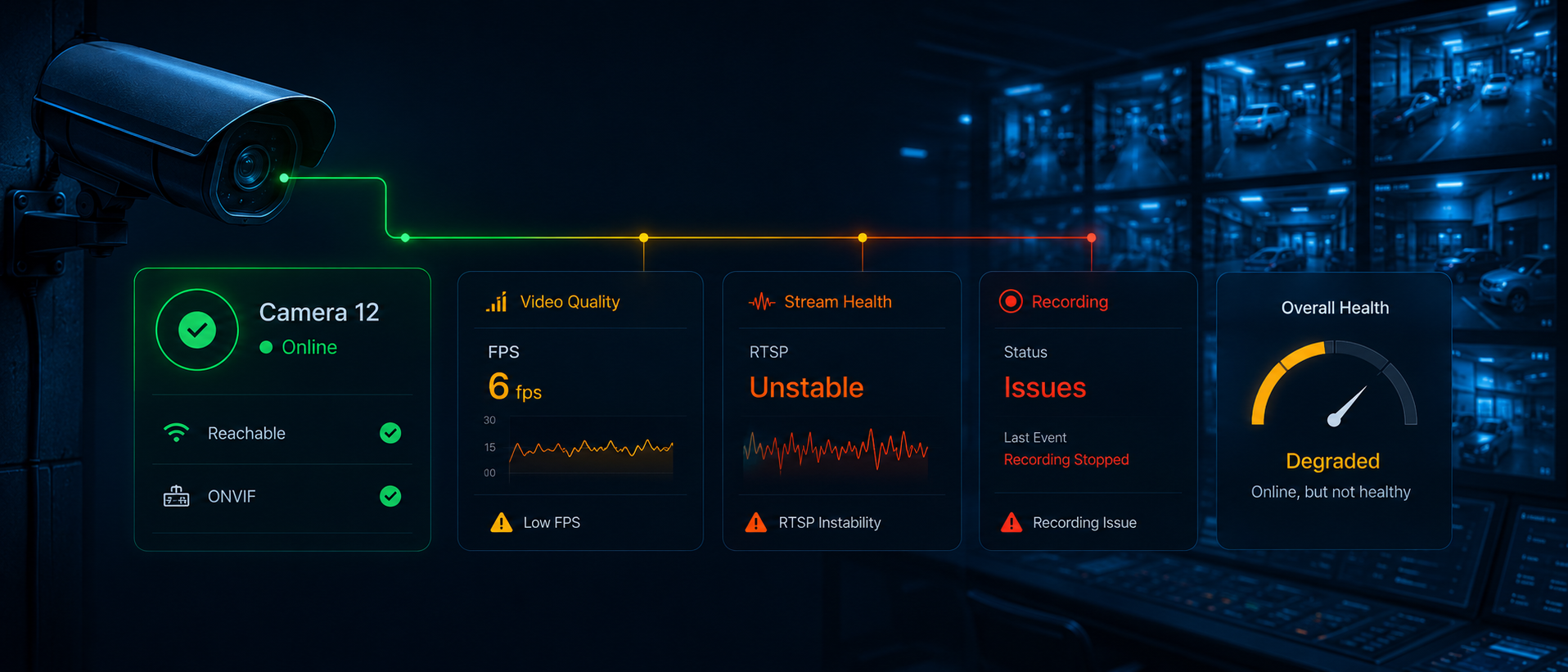
The simplest way to check a camera is to send a ping request. It tells me whether the device is reachable over the network, but it does not tell me whether the camera is actually working.
A camera may answer ping while its RTSP service is unavailable. It may provide RTSP video at a much lower frame rate than expected. The stream may be normal, but the VMS may not be recording it.
All of these situations require different actions, even though the device may technically still be online.
For this reason, I separate camera health into several layers. I check network availability, the video stream, VMS status, recording, storage, and, when necessary, the analytics service connected to the camera.
The result is not just a green or red icon. It is a clearer description of what is working and where the problem begins.
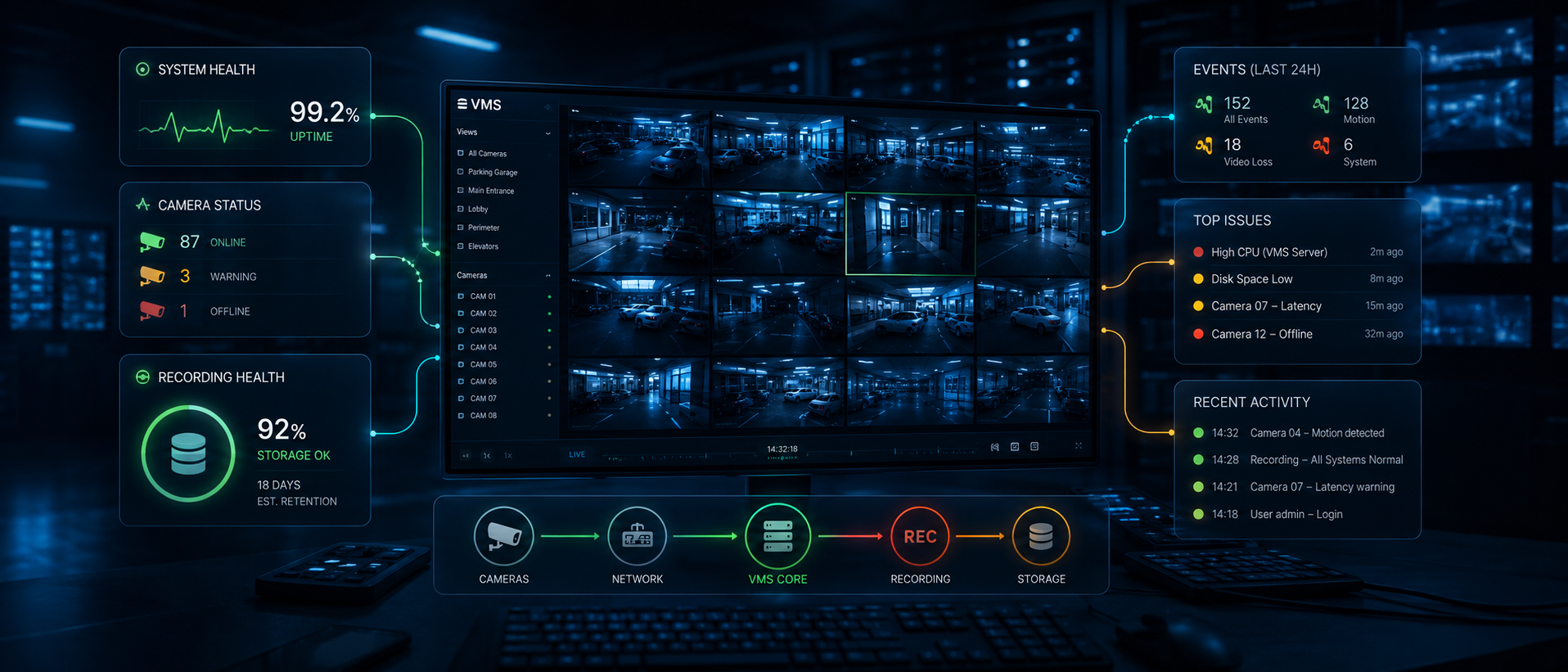
My monitoring system does not try to replace the VMS or create another video archive.
The VMS remains responsible for live video, recording, playback, permissions, and camera management. My dashboard collects technical metadata and turns it into a more useful operational view.
I normally store statuses, check results, errors, timestamps, and the history of changes. This is enough to understand how the system behaves without duplicating large amounts of video data.
When an operator needs to see the camera or open the archive, the dashboard can send them back to the VMS.
This keeps the architecture simpler and avoids rebuilding functions that already work well.
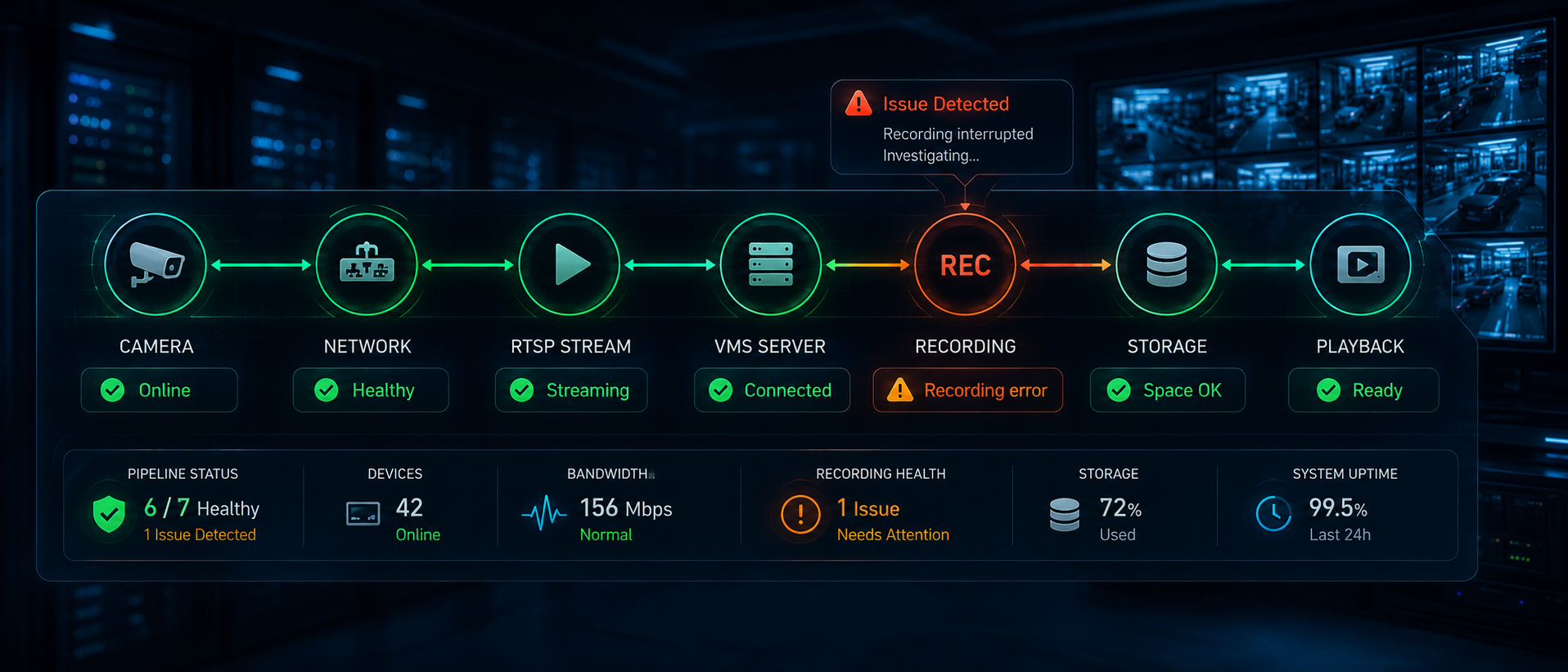
A typical camera path contains several stages:
Camera → Network → RTSP → VMS Server → Recording → Storage → Playback
A failure can happen at any of them.
If the camera is unreachable, the problem may be related to power, the switch, the network, or the device itself. If the camera is reachable but RTSP is unavailable, the issue is probably closer to the camera or its configuration.
If RTSP works but recording does not, I need to check the VMS, recording service, permissions, storage, or server load.
This layered approach makes troubleshooting much faster. Instead of receiving a general “camera problem” alert, I can see the likely location of the failure.
For example:
Camera 24 is reachable. RTSP is available at 25 FPS. The VMS receives the stream, but no recording has been written for 18 minutes.
That message is much more useful than simply showing the camera as offline.
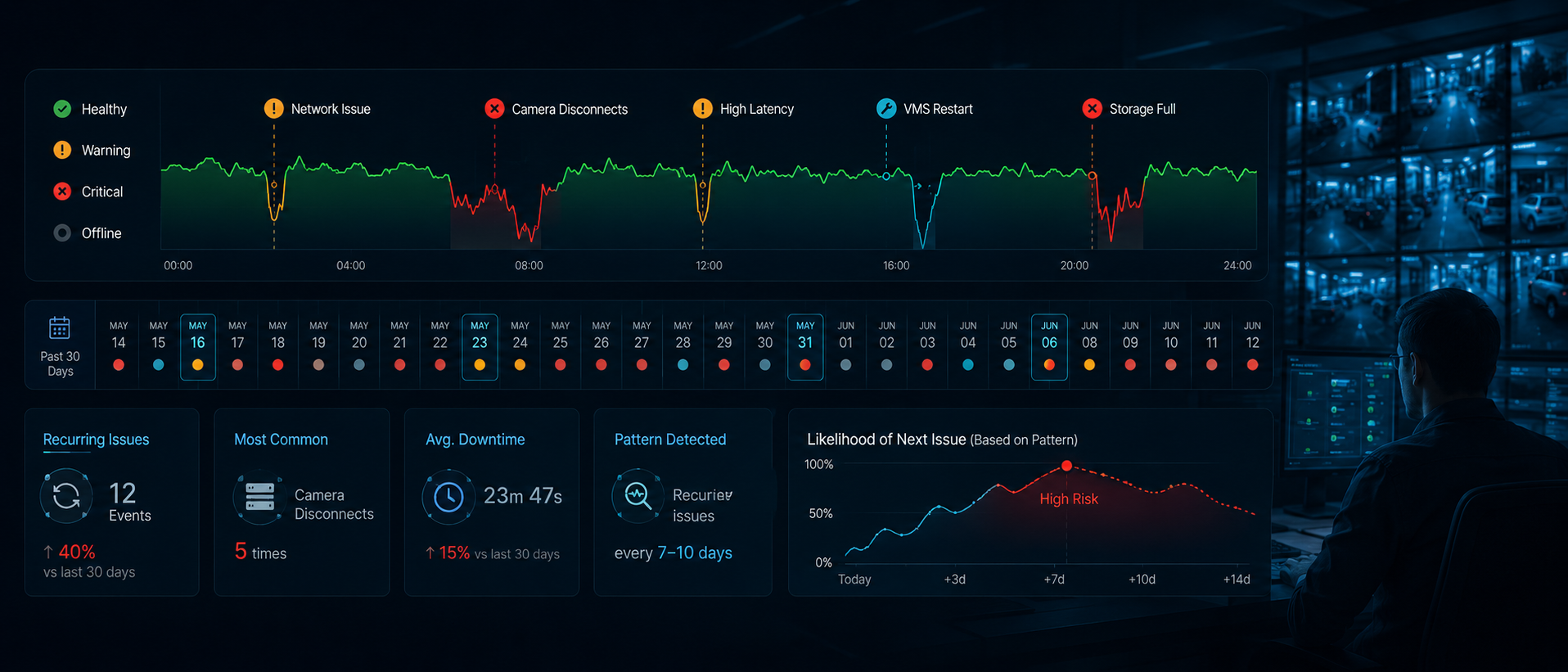
A current status tells me what is happening now. History helps me understand why it is happening.
A camera that goes offline for one minute may not be a serious problem. But if it disconnects every day at the same time, there is probably a pattern behind it.
The same applies to storage warnings, low FPS, service restarts, or analytics failures.
By keeping a history of checks and state changes, I can answer questions such as:
When did the problem begin?
How often has it happened?
Did several cameras fail at the same time?
Did the issue appear after a server restart?
How long did recovery take?
This turns the dashboard from a status page into a diagnostic tool.
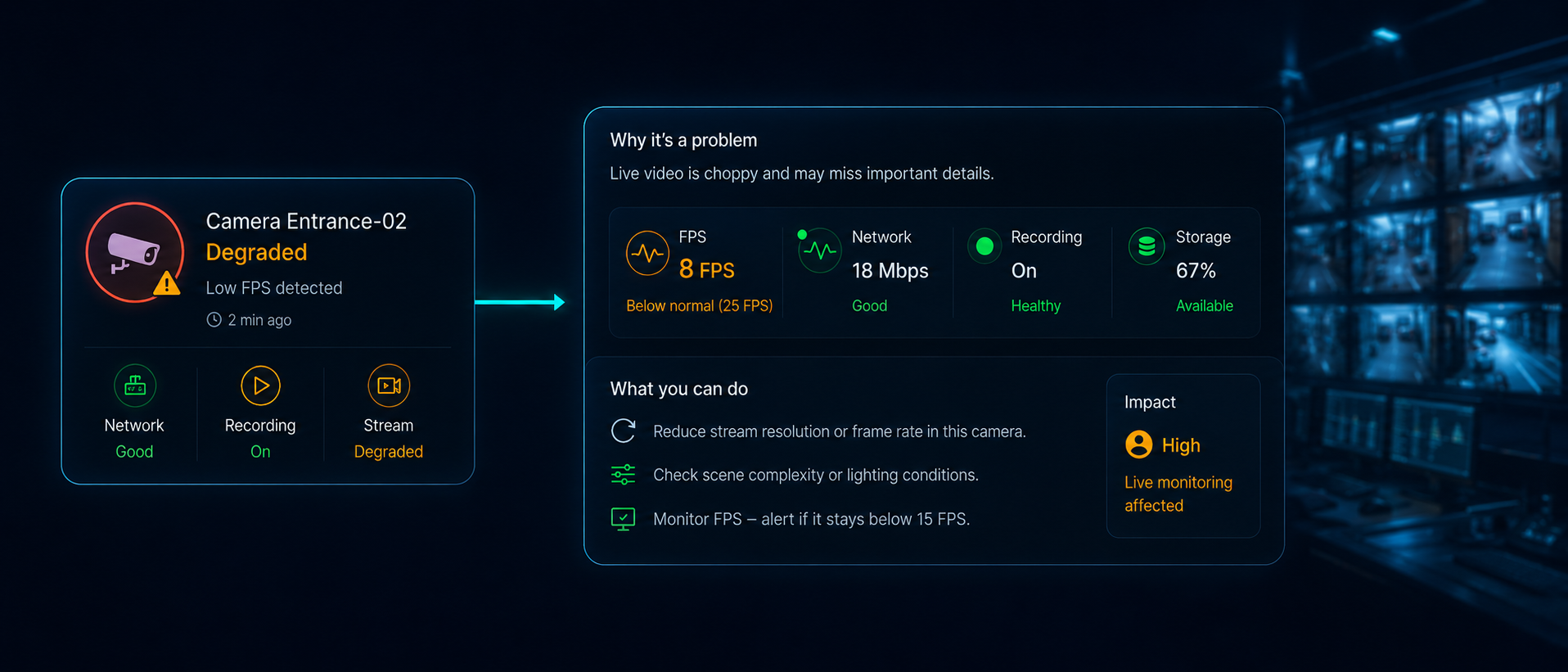
I try to keep the main screen simple. Operators should immediately see which systems require attention without reading a large amount of technical information.
More detailed information should be available when an engineer opens the affected device.
For example, the main view may show:
Camera Entrance-02 — Degraded
The detailed view can explain:
Network connection is available. RTSP is responding, but the actual frame rate is below the configured threshold. Recording is active.
This tells the engineer that the camera is not completely unavailable. The issue is related to video performance, not basic connectivity.
Good monitoring should reduce the time between detecting a problem and understanding it.
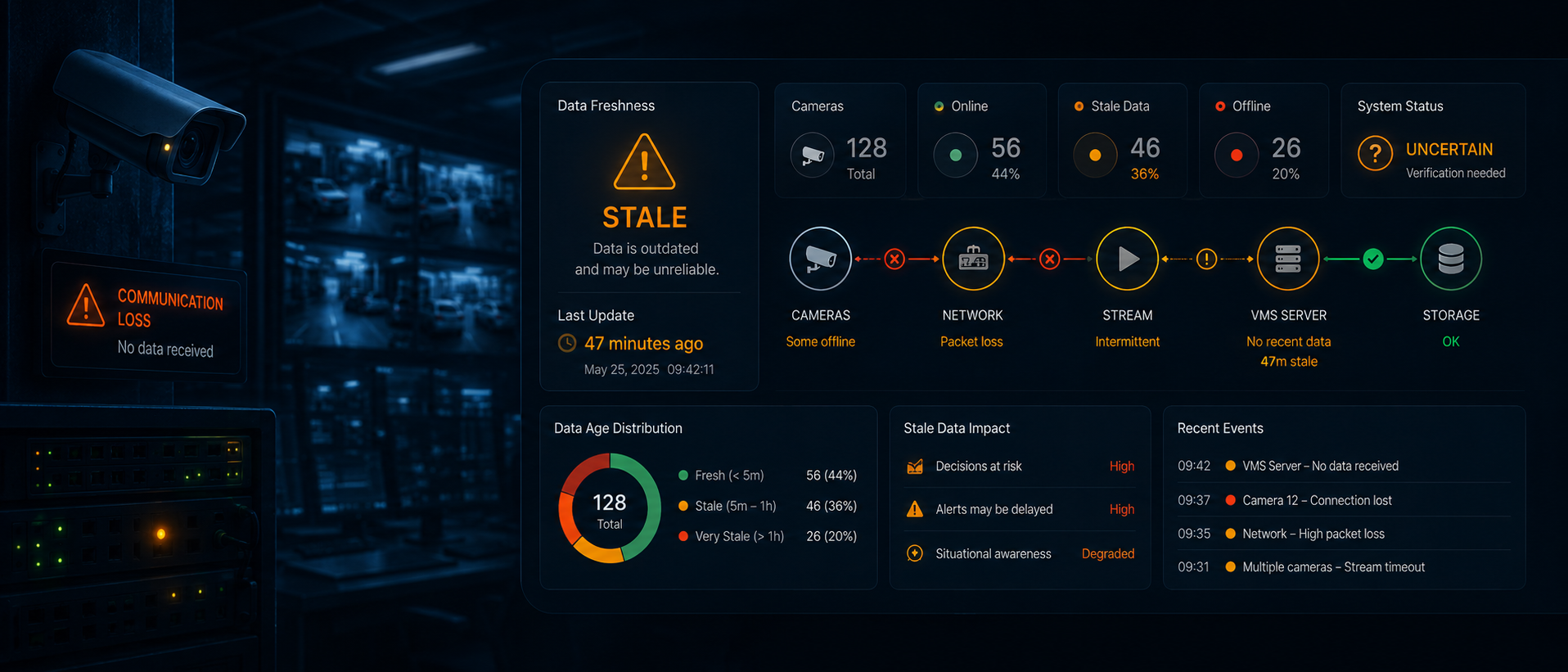
One detail I consider especially important is the age of the last successful check.
If a monitoring service loses communication with the VMS, it should not continue showing the last known green statuses as if they were still current.
An old healthy status is not the same as a current healthy status.
In this situation, I prefer to show that the data is stale or that the state is unknown. I also display the time of the last successful update.
This is more honest and much safer for an operational system.
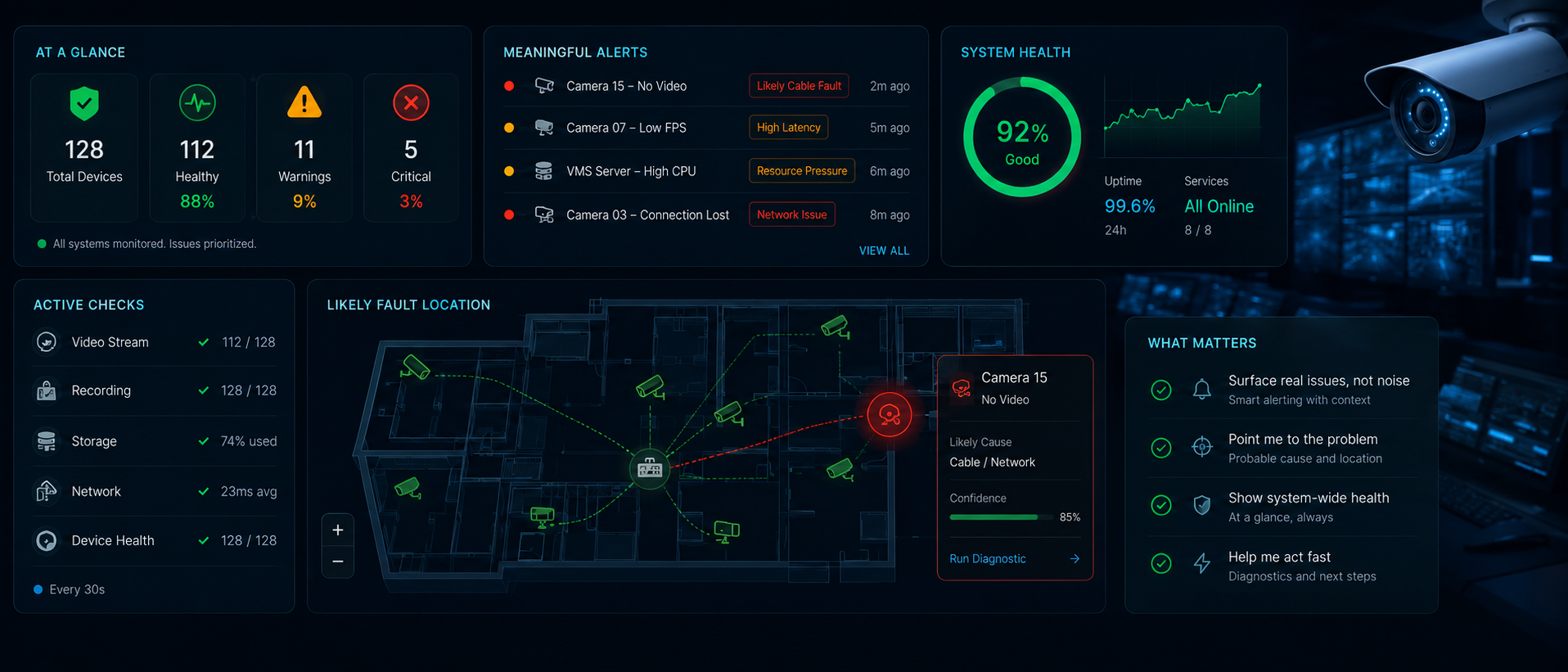
My goal is not to create more alerts.
It is to create better alerts.
A useful monitoring system should tell me what failed, where the failure is located, when it started, and which checks are still passing. It should also help me distinguish a camera problem from a network, server, recording, or storage problem.
That is the main difference between basic availability monitoring and real CCTV health monitoring.
A green indicator is useful, but only when it represents the complete service that the user expects.
For a CCTV system, that service is not simply “the camera answers ping.”
It is:
The camera is reachable, the video is available, the VMS receives it, recording is active, and the archive can be used when it is needed.